Start and Stop Windows Macros with Hotkeys in Asoftech Automation
Asoftech |
Reaching for the mouse to start a routine can disturb the screen you have just prepared. Asoftech Automation lets you assign hotkeys to run and stop a macro, called a robot in its documentation. This guide explains how to test those controls on a small text task and avoid confusing playback with recording.
Choose separate start and stop keys
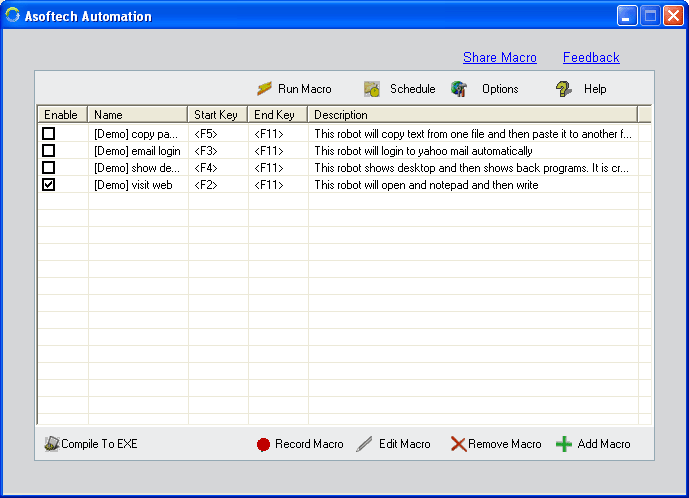
In the robot settings, use Start Hot Key for playback and End Hot Key for stopping the running robot. The user guide gives F2 as an example start key and F11 as the default end key. Check the values saved for your own robot before relying on them. Choose distinct keys that do not conflict with shortcuts you need in the target application. Avoid an ordinary letter used for typing; the documented choices include function keys and combinations such as Ctrl + M.
Test both controls on sample text
Open a disposable text document. Create a short recording that clicks in the document and types a few harmless lines, with enough time between actions to test stopping. Keep repeats and scheduling disabled for this trial.
Give the robot a recognizable name, set its start and end hotkeys, and save it. Write down both keys. Leave Asoftech Automation running and return to the prepared document.
Press the chosen start key once. Confirm that playback reaches the intended document, then press the configured end key while the routine is still running. Use a longer test routine if it finishes before you can stop it.
Inspect the document after stopping. Text or clicks already executed may remain: stopping playback is not an undo command. Clear the sample output and restore the starting screen before another trial. Verify a complete run separately before enabling repeats.
Recording shortcuts have a different job
The user guide documents Ctrl + Alt + R to start recording and Ctrl + Alt + S to stop recording while Asoftech Automation is open, including when minimized or hidden in the system tray. These capture a new sequence; they are not the robot’s configured playback start and end keys. Decide whether you want to record or replay before pressing a shortcut, and keep passwords out of test recordings.
What if a hotkey does not respond?
Check that Asoftech Automation is still running and that you saved the intended robot and key settings. Try the same shortcut in the sample document to isolate an application conflict. If your keyboard uses function keys for volume or brightness, check whether its Fn key or function-lock setting is needed to send F2 or F11. If the target application also uses the shortcut, choose another supported combination and retest both start and stop. Do not assume that Escape stops a robot; use its configured end key.
Prepare the screen before starting playback
A start hotkey launches the saved sequence; it does not confirm that the right file or field is ready. Restore the expected window and cursor position, and check the output before using real work files. Explore Asoftech Automation for recording and editing the mouse and keyboard steps, then use the related guides to resolve focus or timing problems.