Asoftech >> Asoftech Automation >> How to Record, Edit and Schedule a Windows Macro with Asoftech Automation
How to Record, Edit and Schedule a Windows Macro with Asoftech Automation
Asoftech |
A repeated Windows task often begins the same way: open an application, click through a few controls and enter familiar text. A macro can capture that sequence so you can replay it when needed. This guide shows a practical first workflow using Asoftech Automation.
Try a low-risk example such as opening a sample document and entering a standard heading. Write down the expected result first. Keep personal data and irreversible actions out of your first recording, and use a copy of the document while testing.
Record and refine your first macro
Prepare the application and sample file in their usual starting state.
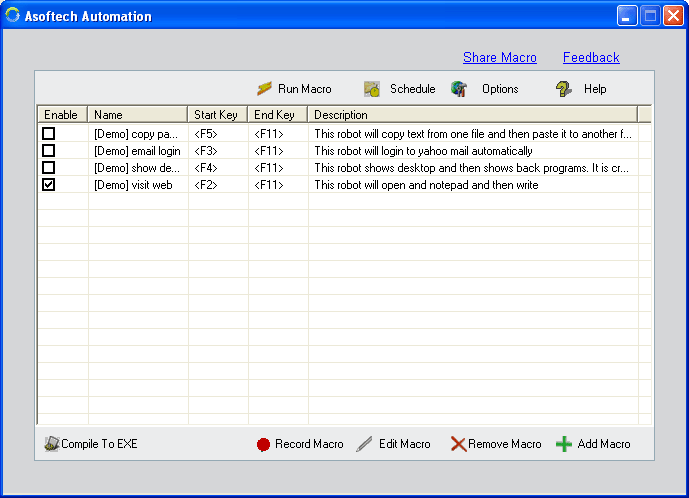
Start recording in Asoftech Automation, then perform the mouse clicks and keystrokes deliberately.
Stop recording as soon as the task is complete. Remove extra clicks or pauses in the macro editor.
Replay the macro once and inspect the target window and output before using repeat settings.
If the routine needs to run again, choose a repeat interval that leaves enough time for the application to respond.
For a time-based routine, use the schedule feature and test it while you can watch the result.
Make playback more reliable
Asoftech Automation can edit recorded steps, move the pointer by relative offsets and compare a screen point with a reference color. RecWin technology helps when a window's position or size changes. These controls can help with predictable interface changes, but a redesigned screen still calls for a fresh test.
A simple example: preparing a daily document
Record opening your working document and typing its standard heading. Edit out any accidental clicks. Replay on a copy, check that the heading appears in the right place, and only then decide whether to start it manually each day or schedule it. Keep the macro limited to setup so you can review the actual document yourself.
Frequently asked questions
Can I change a recorded macro?
Yes. You can edit recorded steps instead of making the whole recording again. Review the new sequence with a single test run.
Should I use repeat or scheduling?
Use repeat for a sequence that should run again at an interval. Use scheduling for a task that should begin at a defined time. Test the recording before enabling either option.
What if the window moves?
RecWin technology is designed to account for changes in window size and position. Check playback after software or layout changes because controls may have moved for other reasons.