Automate Repetitive Windows Tasks with Asoftech Automation
By Asoftech |
Opening the same applications, entering familiar text, and clicking through a routine can consume attention you would rather spend elsewhere. If you can describe a task as a repeatable sequence, it may be a good candidate for a Windows macro.
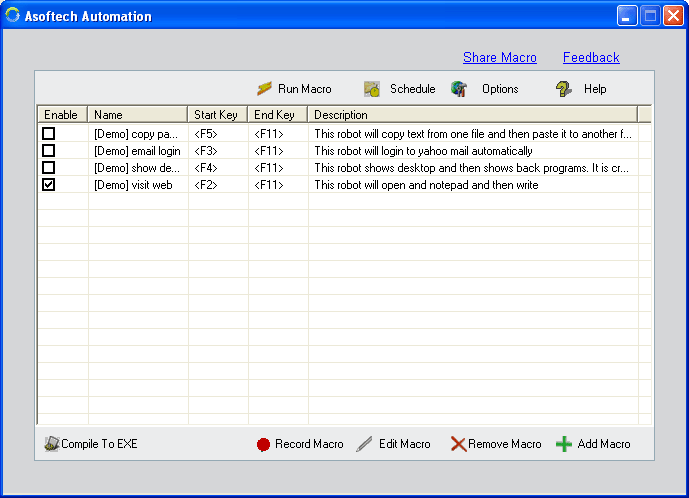
Asoftech Automation records mouse and keyboard activity for later playback. Build a reusable routine from work you already know how to do, then refine it as your needs change.
The software lets you edit recorded steps rather than recreate the entire sequence. Repeat settings handle playback at chosen intervals, while scheduling starts a task at a selected time. Built-in actions can launch programs and open documents.
Consider a morning preparation routine: open the tools you need, bring up a working document, and enter a standard heading. Keeping that sequence together gives you a consistent starting point. You still decide what belongs in the document and review the finished work.
Choose a task that is worth automating
A useful first macro has a clear beginning, a predictable sequence, and an outcome you can check. These example workflows offer manageable starting points:
Prepare a workspace. Open your usual application and reference document before beginning a recurring task.
Enter standard text. Reuse a familiar sequence of keystrokes in a predictable form or document, then review the result.
Repeat a practice workflow. Walk through the same application interaction using sample data when checking how a process behaves.
Start small enough that you can inspect every step. A short routine that works consistently is easier to maintain than a long recording containing unrelated actions.
Adapt playback to your desktop
RecWin technology adjusts recordings for changes in window position and size. Relative cursor movement specifies an offset instead of a fixed destination. A color checker compares a screen point with a reference color to choose an action.
These features give you more control over how a macro responds to its surroundings. Test the routine in the layout you intend to use, especially after an application update or a change to the form being filled. A moved window and a redesigned application are different situations.
Build your first Windows automation routine
Define the result. Choose one repetitive task and write down what a successful run should produce.
Prepare the starting point. Open the relevant application and use a sample document or test data for the first run.
Record the sequence. Perform the mouse and keyboard actions deliberately, keeping the recording focused on the chosen task.
Review and edit. Remove unnecessary steps and check that the sequence reflects the work you actually want repeated.
Replay once and inspect. Confirm that the correct window received the input and that the expected result appeared.
Choose how to reuse it. Once the routine works, decide whether manual playback, an interval, or a scheduled start best fits your day.
For example, a document setup macro could open a working file and enter a standard heading. Test it on a copy first, then compare the output with your checklist. The point is to remove routine setup while keeping the finished document easy to review.
Keep and reuse the routines you build
Macros are stored locally. Export and import help you back them up and restore them. Compile-to-EXE converts a macro into an executable for use on other computers.
Give each routine a descriptive name and keep a note of its expected starting state. Before using it on another PC, check that the required applications and files are available and run a trial there. A reusable macro still depends on the workflow around it.
Frequently asked questions
Do I need to write code to get started?
You can begin by recording the actions you already perform and editing the resulting steps. Choose a simple routine first so that its behavior is easy to understand and check.
Should I repeat a macro or schedule it?
Use interval-based repetition when the same sequence needs to run again during a work session. Use a scheduled start when the task belongs at a particular time. Test the sequence before adding either setting.
How can I tell whether a macro saves time?
Compare the time spent performing the task manually with the time spent starting and reviewing the macro. Include setup and maintenance in the comparison. The best candidates are predictable tasks you perform often.
Make your next repetitive task easier
Choose one routine you expect to repeat this week. Record it, check the result, and refine it until it is useful in your everyday work. That first successful macro can become the starting point for a more efficient daily routine.