Windows Macro Runs Too Fast? Fix Playback Timing with Asoftech
Asoftech |
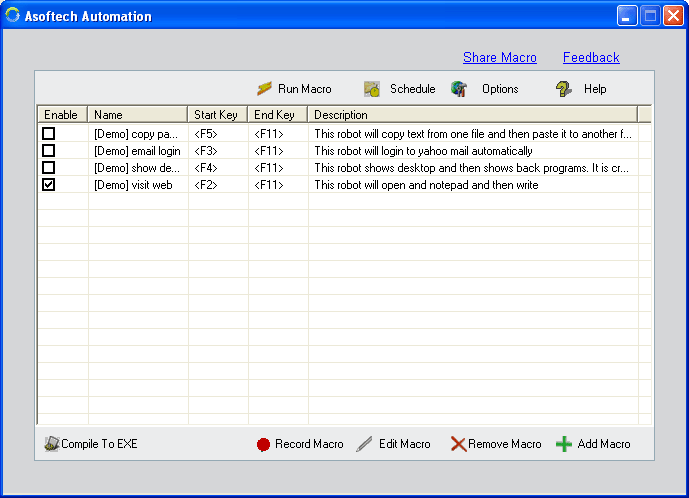
A Windows macro can type before a document opens or click before a dialog appears. The recorded actions may be correct, but the application needs more time between them. Asoftech Automation records and replays mouse and keyboard actions and lets you edit recorded tasks. This guide explains how to diagnose timing problems before repeating a routine.
Why does macro playback miss clicks or text?
Opening a file, loading a page or switching windows takes different amounts of time on different runs. A click sent too soon can reach the previous window; typing can go into the wrong field. First check the starting window and input focus. A longer delay cannot fix a changed button position, a missing file or an unexpected sign-in screen.
How to adjust a recorded routine
Make a copy of your working macro and use a sample document. Run once while watching; identify the first action that arrives before its target is ready.
Open the recorded task for editing. Review the timing around that action and increase the pause before it where the editor allows. Keep other steps unchanged so you can identify what helped.
Restore the same starting window and run again. Check both the visible actions and the saved output; a finished playback does not prove that every field received the right text.
Repeat the test under normal working conditions. If a new window or field order causes the problem, edit or rerecord those steps. Enable repeats or a scheduled start only after single runs work reliably.
Example: typing into a document after opening it
Suppose the document takes about two seconds to open but the macro begins typing after one second. Test a longer pause before the typing action, such as three seconds, and confirm that the cursor is in the document. This is a starting point for testing, not a universal setting. A fixed delay does not detect readiness and may still be too short when the computer is busy.
Should I slow down every step?
Start with the first failing transition rather than adding long pauses everywhere. If the cursor is already in the wrong place, correct focus or the starting screen first. Keep a known working copy before changing a successful routine.
Choose Automation or Auto Clicker
Use Asoftech Automation for a sequence combining keyboard input and mouse actions. For repeated mouse clicks at predictable positions, Asoftech Auto Clicker offers click intervals and start/stop keyboard shortcuts. Test one short routine before using either tool for repeated work.