Auto Clicker on a Second Monitor: Recheck Saved Positions
Asoftech |
Moving an application from a laptop screen to an external monitor can put its buttons in different screen positions. Before reusing a saved clicking routine, stop it and check the new workspace. Asoftech Auto Clicker lets you specify click positions, intervals, repeat counts and keyboard shortcuts. This guide explains how to retest those positions after connecting a monitor, moving a window or changing display settings.
Why can clicks miss after a monitor change?
A saved click position refers to a point on the screen. It does not by itself identify a named button. Moving a window changes where its controls appear; different scaling or resolution settings can also change their size or layout. Adding, removing or rearranging displays is a reason to recheck the whole sequence. The product documentation does not establish compatibility with every multi-monitor or mixed-DPI configuration, so test your actual setup before relying on it.
Prepare the display and test one click
Stop the robot before changing the workspace. In Windows, open Settings > System > Display. Identify the intended screen and note its arrangement, scale and resolution. Choose readable settings you plan to keep; there is no need to force every display to 100% scaling.
Place the target application entirely on the screen you intend to use. Set its window size and starting view, close obstructing dialogs and try the intended action manually on sample data. Avoid moving the window between screens during the test.
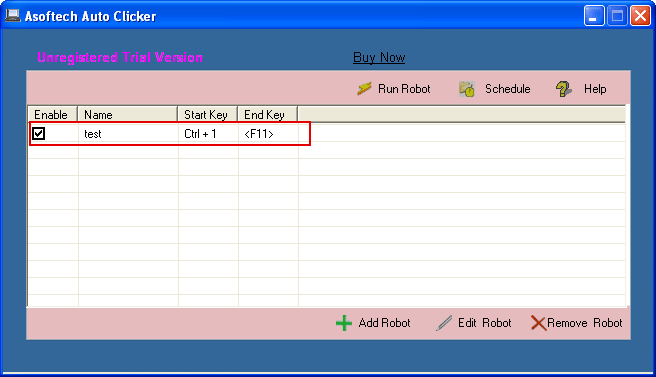
In Asoftech Auto Clicker, use Add Robot to create a short test routine and capture a fresh position following the official setup guide. Choose the required click type, an interval long enough to observe the result and one repeat. Configure the start and stop shortcuts and check that the robot is enabled.
Run the test while watching the target. Confirm both that the correct control was clicked and that the expected result occurred. Test the stop shortcut with a small, limited run on a harmless target. For a sequence, check every point in order before increasing repetitions.
Example: reconnecting a laptop to a desk monitor
A routine created on the laptop clicks a preview button in a test application. At your desk, you move that application to a larger monitor and maximize it. The old point may now hit another control or empty space. Either restore the tested workspace or build and test a routine for the desk layout. Give each robot a clear name, such as Laptop preview or Desk preview, and keep separate notes of the screen, window size, scale and resolution used.
What if fresh positions still fail?
First confirm that the same action works manually and the intended window is visible. If a click lands correctly but the next action arrives too soon, increase the interval. If it lands elsewhere, recheck positions and display settings; a longer delay cannot correct the location. If a secondary-screen test remains unreliable, try a short test entirely on the main display. Treat that as a troubleshooting comparison, not proof of support for the original setup.
When should you retest a saved routine?
Retest after docking or undocking, changing the main display, rearranging monitors, changing scaling or resolution, or updating the target application's layout. Keep a small repeat limit until the full sequence works from its expected starting state. Review the Asoftech Auto Clicker product details and official setup guide for the available controls, and use automation only where it is permitted.