Click Mouse Cursor Automatically with Auto Clicker Asoftech
Auto Mouse Clicker Software Download
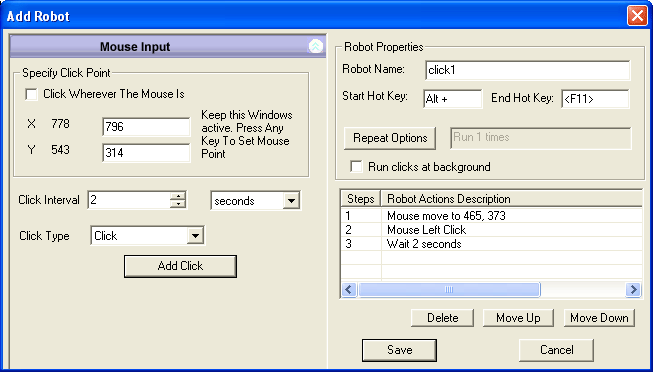 Auto Clicker Asoftech enables automatically clicking Left Mouse Button with Keyboard Shortcut. User can specify one or multiple clicks, and save them
as one robot. User can then start the robot (clicks) with a keyboard shortcut. The program allows user to add one or mutiple robots, where each robot may serve for different purpose.
Auto Clicker Asoftech enables automatically clicking Left Mouse Button with Keyboard Shortcut. User can specify one or multiple clicks, and save them
as one robot. User can then start the robot (clicks) with a keyboard shortcut. The program allows user to add one or mutiple robots, where each robot may serve for different purpose.
Auto Clicker Asoftech can be used to automate mouse clicks and movements. Mouse will click and move faster and more accurate. Automate tasks on PC computer (both desktop and laptop) to improve productivity. Download the Auto clicker for computer games (both online games and PC games) such as MMORPG runescape 3, Ragnarok Online, cookie clicker, maplestory auto clicker, Harvest FarmVille from Facebook, grind in Wow, jackpotjoy on FB, Star Trek Online, Horseland, 9Dragons, action role-playing game such as The Elder Scrolls V: Skyrim. The Windows Clicker can also be used for test automation, or Auto Keybot. Other usage of auto mouse clicker program includes automate E-mail sending, auto ad clicking, disable screensaver, automate your computer game - automate everything with a window! The mouse clicker software supports Windows 8, 7, Vista, XP, 2000, 10, 11. You can simulate or mimic mouse clicks and movement easily with Asoftech Auto Clicker Program.
Schedule feature allows to run tasks at a pre-defined time, so that clicks can be started when you are not around. Work at background feature enables user to work at the same time of auto clicking. Download the trial for free.
Download Link 1
| Download Link 2
Key Features
-
Various click types supported: left click, right click, double click, click-hold, mouse up
-
Full control of delay or interval between clicks
-
Drag and drop are supported*
-
Schedule click to start at a pre-defined time.
-
Click can be started with keyboard shortcut, button click, or scheduled time
-
User can define number of clicks to perform, or click forever
-
Clicks can be stopped with stop-keyboard-shotcut
-
User can work at the same time of clicking
-
Multiple clicks enabled in one robot (a robot is series of clicks)
- Multiple robots are enabled so that user can schedule them differently
*For drag, or drag and drop, first add 'click-hold' at drag point, then add 'release' at target, or drop point.
Awards
Get Auto Clicker Asoftech With Only $14.95 Now
Auto Clicker Asoftech's usual price is $29.95, now it is selling at a promotion price of $14.95. Grab your piece before this offer ends.
Your subscription includes:

|
Buy Now and Automate Mouse Clicks
Limited Offer !
Usual Price
$29.95
Special Promotion Price
$14.95
Save 50% Today!
|
How to use Auto Clicker Asoftech
Download and install Auto Clicker Asoftech
Launch Auto Clicker with Shortcut on Desktop or from Programs Menu.
Auto Clicker main window shows a list of robots (a robot is one click or series of clicks).
Click 'Add Robot' to add a click, or a series of clicks
In 'Add Robot' dialog, you can specify the position, interval and type of clicks, start and stop keyboard shotcuts.
Click 'Save' to save robot. Now you can press start keyboard shotcuts to start the clicks.
more help
Asoftech auto clicker has been tested on desktop and laptop windows computer, for brower internet explorer, firefox, chrome, facebook, youtube, instagram, all games and apps.
adfly
archeage
andy
habbo
clicker heroes steam
minecraft pvp
roblox
runescape
heroes of camelot
archeage
bluestacks
game of war
tap titans
clash of clans
boombang
bux sites
mac
iphone
blackberry
android
cookie clicker
chromebook
cs go
clicking bad
droid4x
ddtank
dragons of atlantis
diablo 3
diamond dash
dekaron
dota
dekaron nemesis
edgeworld easyhits4u
evony
everquest
granado espada
traffic exchange
goodgame empire
flash games
flyff
farmtown forsaken world
garena
godswar
gw2
hobbit kom
high alch
hello hero
habbo
heroes of camelot
imvu
jade dynasty
jimdo
jitbit
jx2
kickass
kongregate
kaskus
kittens game
lineage 2
neobux
nmz
osrs
conquer online
odesk
osu
mu online
ptc sites
perfect world
probux
pockie ninja
priston tale
rust
ran online
realm grinder
ragnarok online
rohan
steam summer game
steam monster game
terraria
tap heroes
ultimate team
untuk game
voting
ragnarok valkyrie uprising
wartune
xpadder
yoville
yellow star
zhypermu
zombie island
zero online
|