Auto Double Clicker for Windows: Setup and Practical Tips
Asoftech |
Need to repeat a double click without doing it by hand each time? An auto double clicker can repeat that mouse action at a chosen screen position. With Asoftech Auto Clicker, you can save the action in a robot, control the interval and repeat count, and start or stop the routine with keyboard shortcuts. This guide shows how to build a small, predictable routine for a desktop task.
What is an auto double clicker?
An auto double clicker sends a double-click action automatically. It can help with repetitive desktop demonstrations or testing an application you control. A double click is different from two separate single clicks: the target application must recognize the pair as one action. Choose the dedicated double-click type rather than assuming that two repeated single clicks will behave the same way.
How to set up automatic double clicks on Windows
Open the target application and put the control you want to double-click in a stable position. Use a test item whose action is easy to undo.
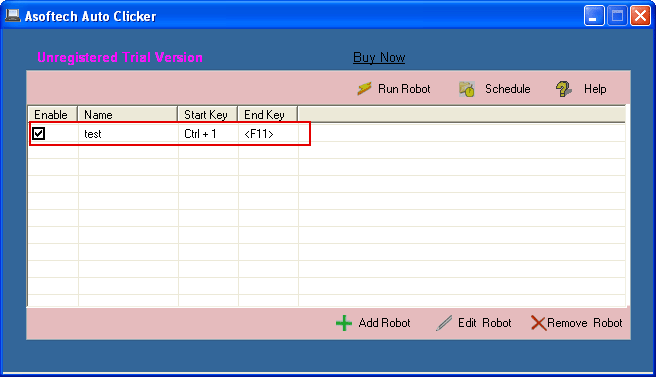
Open Asoftech Auto Clicker and choose Add Robot. Keep that dialog active, hover over your target and press a key to capture the coordinates, as described in the product help.
Choose the double-click type. Set Click Interval to give the application enough time to finish the action before the next repetition; one or two seconds is a reasonable starting point for a simple test.
Add the click to the robot. Give the robot a descriptive name and choose a small repeat count, such as three runs, for the first test.
Set a start shortcut that does not conflict with the target application. Check the configured end shortcut and test that it stops playback before using a longer routine.
Save the robot, return to the prepared target window and run the test. Watch every action and check the result before increasing the repeat count.
A practical double-click test
For a simple example, use a test application where double-clicking a row toggles a harmless detail panel and leaves the row in place. Start with three repetitions and a two-second interval. You should see three double-click actions, with time for the panel to respond between them. If the first action opens another window or moves the target, stop and redesign the sequence; repeating fixed coordinates will not follow a changing interface.
Click interval, repeat count and common problems
The interval between repeated actions is different from the timing inside a double click. Increasing the repeat interval gives the application more time to respond; it does not necessarily change how Windows recognizes the double click. If clicks only select an item, confirm the click type and test a manual double click. If clicks miss, restore the original window position and display scaling, then capture the coordinates again. If playback is hard to stop, check for shortcut conflicts before continuing.
Frequently asked questions
Can I double-click more than one location?
Asoftech Auto Clicker supports robots with multiple clicks. Add each target in the required order and test the whole sequence once before repeating it. Allow time for any window or panel to open.
Can automatic double clicks start at a scheduled time?
The product supports scheduling a saved robot. Test manual playback first, then test a nearby scheduled start while you are present. The target application must be ready when the robot runs.
Does this routine also type text?
This guide covers mouse actions. If your task also needs keyboard input or a recorded sequence of mouse and keyboard actions, compare Asoftech Automation with Auto Clicker before choosing a tool.
Explore Asoftech Auto Clicker and its trial download to try your own routine. Begin with a small test and use automation only where the application or service permits it.