Auto Clicker for Multiple Locations: A Windows Guide
By Asoftech |
Turn repeated clicks into a reusable sequence
Do you keep clicking the same two or three buttons in a Windows application? A multi-location auto clicker can turn that repeated work into a saved sequence. Instead of recreating the pattern by hand, define the screen points once and run the routine when you need it.
Asoftech Auto Clicker lets you combine several mouse clicks in one robot. A robot is a saved series of click actions. This guide focuses on building a useful sequence across different locations, with enough time for the application to respond.
A good starting example is a desktop test application: click a tab, select a test option, then click a preview button. Use a task with predictable controls and an outcome you can inspect. Keep the window in the same position and size while recording points and running the sequence.
Coordinate-based clicking depends on where a control appears on screen. If a dialog moves, the page scrolls or the display scaling changes, the saved point may no longer match the button. Prepare the workspace before starting.
How to set up clicks at multiple locations
Open your target application and arrange its window. Write down the required click order before configuring the robot.
In Asoftech Auto Clicker, select Add Robot. Specify the first point using the position controls, choose the click type and set Click Interval, then add the click.
Repeat for each additional location in the order required. Use a double click only when the target needs it; a single left click suits many ordinary buttons.
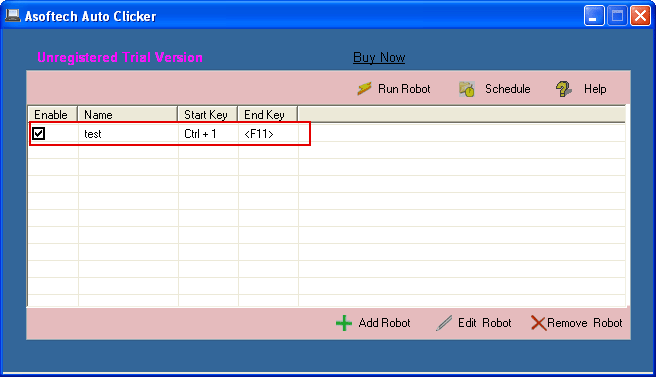
Give the robot a descriptive name, such as Test preview sequence. Select one repeat for the first test and configure the start and stop keyboard shortcuts.
Save the robot, check that it is enabled, and run it while watching the target application. Verify the stop shortcut before increasing the repeat count.
Test the whole sequence before repeating it
For an illustrative three-point routine, click A to open a panel, B to select an option and C to show a preview. After C, check whether A is available again. A sequence that works once may fail on the next loop if the application ends on a different screen.
Start with a generous interval, such as one second, and allow more time for slow controls. This is a test setting, not a guarantee. A timed click does not establish that the application has finished loading; observe the result and adjust the routine accordingly.
Fix missed clicks and timing problems
If a click misses, stop the robot and check the saved point against the current window position. If the next action arrives too soon, increase the interval and test again. If the first run succeeds but later runs fail, restore the starting screen or revise the sequence so each loop begins in the expected state.
Avoid moving the target window during a run. After changing resolution, display scaling or the application's layout, check every location again. Save separate robots for different tasks so the names and click sequences remain easy to understand.
Frequently asked questions
Can one robot click different screen locations?
Yes. Add multiple click actions to the same robot, specifying the point and settings for each action. Test them in the intended order.
Does one repeat mean one mouse click?
A repeat runs the robot's sequence. If it contains three click actions, one repeat runs those three actions. Check both the action list and repeat setting before starting a longer run.
What if my task also needs typing?
For workflows that combine mouse actions with keyboard input, review the Asoftech Automation guide linked below and choose a tool that matches the task.
Build your first multi-location routine
Begin with a short sequence, confirm that each click reaches its target, and save the working robot for reuse. Visit the product page for features, system requirements and trial options.