Back Up and Restore Windows Macros with Asoftech Automation
Asoftech |
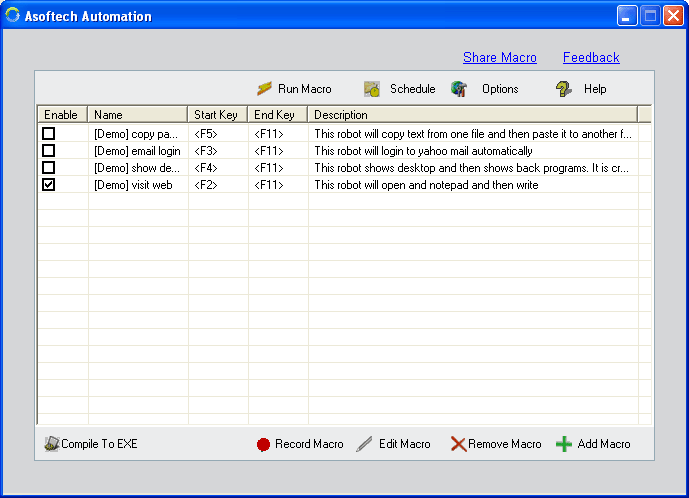
A useful Windows macro represents more than a recording: it contains the steps and timing you have already tested. Keeping a separate backup helps you reuse that work after a computer change or an accidental edit. Asoftech Automation records mouse and keyboard actions and includes export and import features for backing up and restoring macros.
How to back up a tested macro
Start with a short routine that produces a result you can check, such as opening a sample document and entering a fixed line of text. Use a copy of your working files while testing. Exporting a macro preserves the automation instructions; it does not replace a backup of the documents or applications the routine uses.
Run the original macro once and check that its mouse clicks, keyboard input and final result are correct.
Use Asoftech Automation’s export feature to save the macro. Give the backup a meaningful name with the task and date, and keep it separately from your working copy.
Note the target application, required files, starting window, timing and expected result. Keep passwords and other sensitive values out of the recording and notes.
To reuse the saved routine, use the import feature in Asoftech Automation. Keep the original backup while you test and edit the restored copy.
Check the restored macro before repeating it
Prepare the same starting screen and confirm that required applications and documents are available. Check file paths, field order, display scaling and pauses between actions. Run one supervised playback on sample data and compare the result with your notes. Only enable repeats or a scheduled start after the routine works reliably. RecWin can adjust for changes in window position and size, but it does not remove the need to test a changed application or computer.
What if playback clicks or types in the wrong place?
Stop playback and restore the expected starting window. Review the affected steps and allow more time for a slow window or document to open. If an application update changed a button or field, edit or rerecord that part of the macro. Test the revised routine once before exporting a new backup; keep the previous working version until you have checked the replacement.
Frequently asked questions
Does exporting a macro back up my files too?
No. Treat the exported macro as a backup of the routine. Back up the documents it opens separately, and check that the required software is installed before restoring the workflow on another computer.
Choose the right tool for your routine
Use Asoftech Automation when your task combines mouse actions and keyboard input. If you only need repeated clicks at predictable positions, explore Asoftech Auto Clicker and test a small click routine first.