Automate Repetitive Data Entry on Windows with Asoftech Automation
Asoftech |
Entering the same information into a desktop form can be slow and error prone. Asoftech Automation can record mouse and keyboard actions, replay them and let you edit the recorded steps. Use this guide to build one small, reviewable data-entry routine.
When a recorded macro makes sense
A macro is useful when each run starts from the same screen and follows the same field order. For example, you might open a local form, enter a standard heading, select a category and move to the next field. If values differ every time, prepare and check those values yourself; a recorded macro does not know whether the data is correct.
Record a short data-entry routine
Open a sample form and make a backup or use test data. Decide exactly where the routine should start and what a successful result looks like.
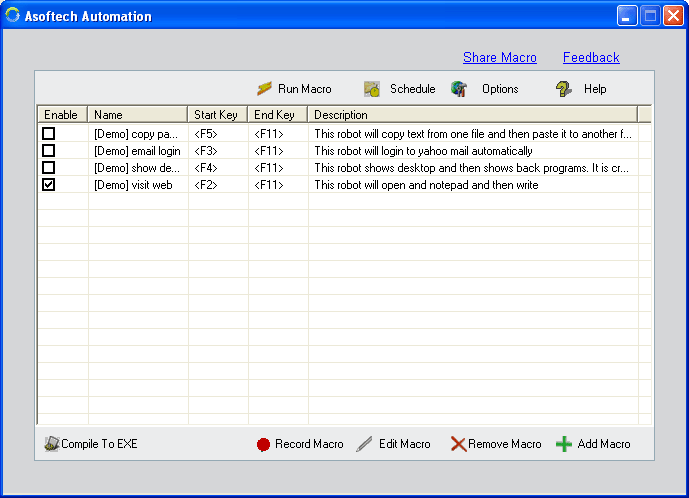
In Asoftech Automation, record the mouse clicks and keystrokes needed for one short form. Include only stable actions and stop the recording before any irreversible submission.
Review the recorded steps. Remove accidental clicks, adjust delays where the form needs time to respond and save the macro with a descriptive name.
Return the form to its starting state. Replay the macro once while watching every field, then compare the result with your sample data.
Only after a successful single run, consider repeats at an interval or a scheduled start. Recheck the result after any form or application update.
Make playback more dependable
Keep the target window visible and confirm that keyboard focus is in the expected field. Screen scaling, pop-ups and slow loading can shift the next action. Asoftech Automation includes RecWin support for window position and size changes, but it cannot validate your form values. Keep a stop method ready and inspect the output.
When Auto Clicker is the simpler choice
If the task only needs clicks at one or several fixed points and no typing, explore Asoftech Auto Clicker. It saves click sequences as robots with timing, repeat and shortcut options. For a form that needs both clicking and typing, Asoftech Automation is the better starting point.
Frequently asked questions
Can a macro handle changing values?
A recorded routine replays the actions you saved. Review variable details such as names, amounts and dates before each run, and do not assume the macro checks their accuracy.
Should I automate the final Submit button?
For the first tests, stop before submitting. Inspect the completed form and submit manually. Add further automation only after the workflow is dependable and you can verify its results.
Start with a small, testable workflow
Try Asoftech Automation for a short mouse-and-keyboard routine. If your work is click-only, see Asoftech Auto Clicker and its click-robot options.