Auto Clicker for Browser Buttons: Check Scrolling and Zoom
Asoftech |
A browser button can be visible yet no longer sit at the point saved in your click robot. Scrolling, zoom changes and a resized browser window can change the layout. Asoftech Auto Clicker lets you save click positions, choose intervals and control repetitions. For a browser routine, first make the page's starting layout reproducible instead of repeatedly clicking an old point.
What can move a browser button?
Browser zoom changes page sizing, while scrolling changes which content is visible. A sidebar, download panel, banner or newly loaded section can also shift the target. Even the same page address does not guarantee the same screen layout. In a coordinate-based setup, treat each saved point as a position to verify, not a promise that the button will be tracked automatically.
Prepare and test one browser click
Use a test page or a reversible action where automation is permitted. Open the intended tab, set a comfortable browser zoom and choose the window size you will use. Wait for the relevant content to finish appearing.
Scroll to the intended starting position and check that the target is fully visible and unobstructed. Keep this tab in front for the test. Note the zoom, window size and starting scroll position so you can reproduce them later.
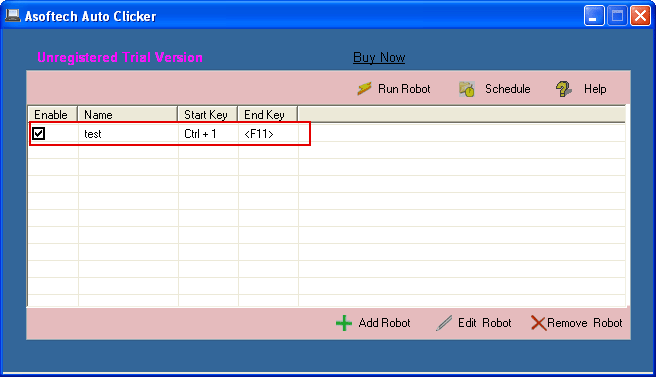
Create a robot in Asoftech Auto Clicker and capture the current button position using the official setup guide. Start with one left-click action, one run and an easy-to-observe interval. Check the configured stop shortcut before starting.
Watch the test and inspect the page's resulting state. If the click misses, stop and recheck the layout before capturing the point again. Test a small number of repetitions only if the button remains in the expected position after each action.
Example: a button shifts after browser zoom changes
You save a point on a test button, then increase the page zoom to read smaller text. The page reflows and the button moves, so the old point may hit blank space or another control. Restore the tested zoom and window layout, or capture and test a new point for the new layout. Keep separately named robots if you routinely use different layouts.
Will a longer click interval fix a shifted button?
A longer interval can give the page time to respond, but it does not move a saved point onto a relocated button. First correct the layout or coordinates. If each click opens a panel or navigates to a different screen, inspect and test every transition; do not assume a repeated point remains suitable.
Keep a reusable browser routine with Asoftech
Use Asoftech Auto Clicker for a short, observable sequence on a predictable page. Save notes about its starting tab, zoom and scroll position with the robot. Recheck after browser, display or website changes. Review the product page and official setup guide for available options; automated input is not guaranteed to work on every site.